
Help and documentation
Images
Master the use of 360 images: supported formats, how to capture or render, recommended resolutions, and best practices for the best visual quality.
What is a 360 image
A 360 image is an image file, typically in JPG format, that can be obtained in two ways:
- Photography captured by a 360 camera.
- Rendering generated by 3D modeling software.
Unlike conventional photography, a 360 image captures all angles of an environment in a single file, allowing users to look up, down, to the sides, and backward during navigation.
To properly view this type of image, you must use a 360 viewer, such as MeuPasseioVirtual.
When opened in a phone gallery or common image viewer, it will appear distorted. This behavior is expected, as these apps don't interpret 360 images.
Equirectangular Format
The standard format used by 360 images is equirectangular.
An equirectangular image has a 2:1 aspect ratio, meaning its width is exactly twice its height.
Examples of valid resolutions:
- 2048 × 1024
- 4096 × 2048
- 6000 × 3000
- 10000 × 5000
This format allows storing the entire image sphere in a single file.
Before uploading your images to MeuPasseioVirtual, confirm that they are in this format.
Recommended Resolutions
The higher the image resolution, the better the quality of the experience during navigation.
We recommend using images with a minimum resolution of 4096 × 2048 pixels.
If you're generating renders, always use the highest resolution possible within the limitations of your computer and rendering time.
Avoid very small images, as they may experience loss of definition when zooming or navigating the environment.
How to Capture Photographs
There are two ways to obtain 360 images:
- Using a 360 camera.
- Generating a render in 3D modeling software.
360 cameras capture the entire environment with just one click, automatically storing the image in the proper format for use in MeuPasseioVirtual.
Today there are several models available on the market. Some of the most popular are:
- Ricoh Theta
- Insta360
- Samsung Gear 360
Regardless of the brand chosen, verify that the camera exports images in equirectangular format.
Can I use my phone's camera?
No.
Conventional photographs cannot be transformed into 360 images simply by combining several photos.
Although there are apps that promise this result, the quality is usually much lower and is not recommended for creating Virtual Tours.
It's also important to note that the Panorama mode available on many phones doesn't produce a 360 image. It generates only a partial panoramic photograph.
Is there another way to create 360 photographs?
Yes.
Some photographers use a technique called stitching, which involves combining several photographs captured with professional cameras.
This process requires specific equipment, such as fisheye lenses, panoramic heads, and specialized software, as well as manual editing work.
It's a solution aimed at professionals who need high quality.
How to Generate 360 Renders
In addition to photographs, MeuPasseioVirtual also accepts rendered images.
Various 3D modeling software allows you to generate 360 images, including:
- SketchUp
- Revit
- Lumion
- 3ds Max
- Blender
- Cinema 4D
- Archicad
- Maya
- Rhinoceros
In most of these applications, just configure the render for 360 Panorama or Equirectangular format.
Some programs use specific renderers, such as V-Ray, Enscape, or other plugins, that offer support for exporting 360 images.
As each software has a different process, consult the documentation of the renderer used to configure the export correctly.
Stereoscopic 360 Images
To provide an even more immersive experience on Virtual Reality (VR) devices, MeuPasseioVirtual supports stereoscopic 360 images in different formats.
In stereoscopic images, each eye receives a unique image, creating a perception of depth and making the experience much more realistic when viewed on compatible headsets.
1:1 Format (Top-Bottom)
In this format, two equirectangular images (one for the left eye and one for the right eye) are stacked vertically, resulting in a final image with a 1:1 aspect ratio.
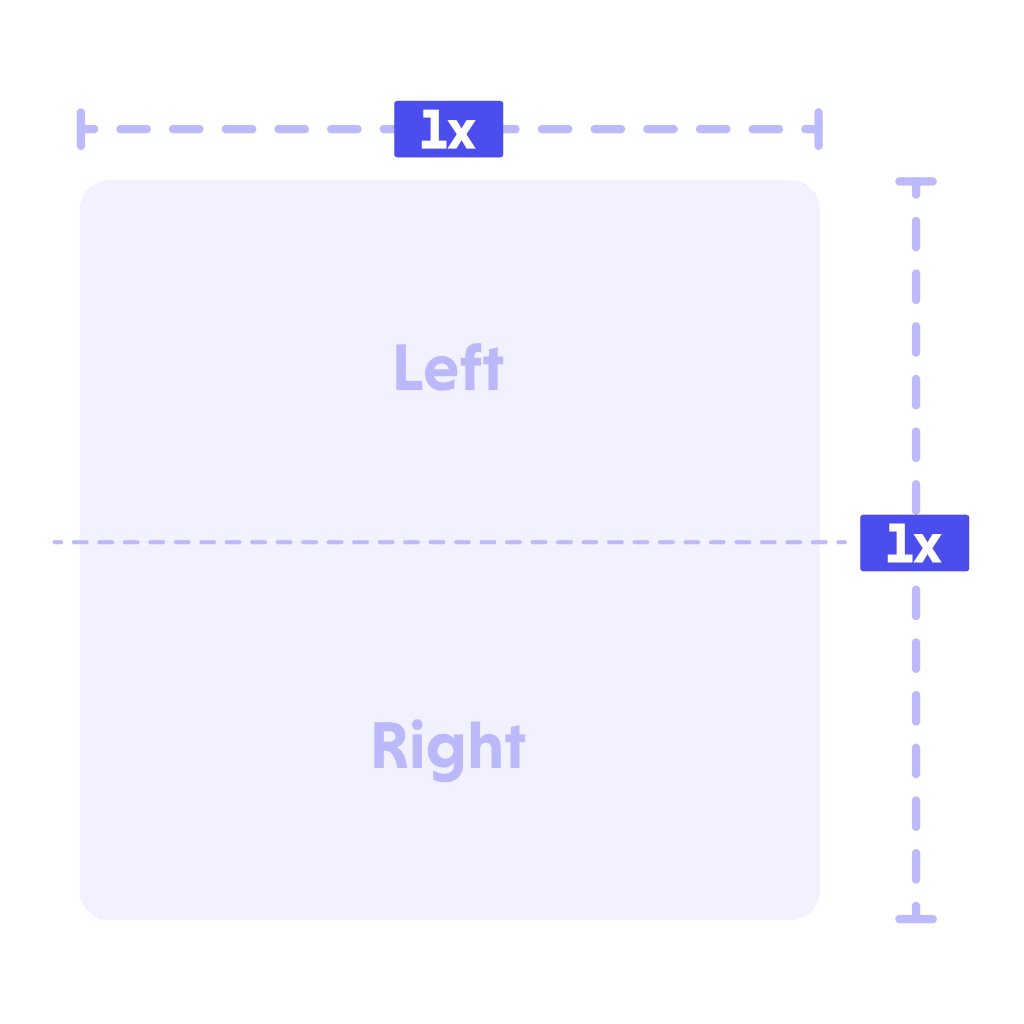
- Left eye: top half of the image.
- Right eye: bottom half of the image.
4:1 Format (Side-by-Side)
In this format, two equirectangular images (one for each eye) are positioned side by side, resulting in a final image with a 4:1 aspect ratio.
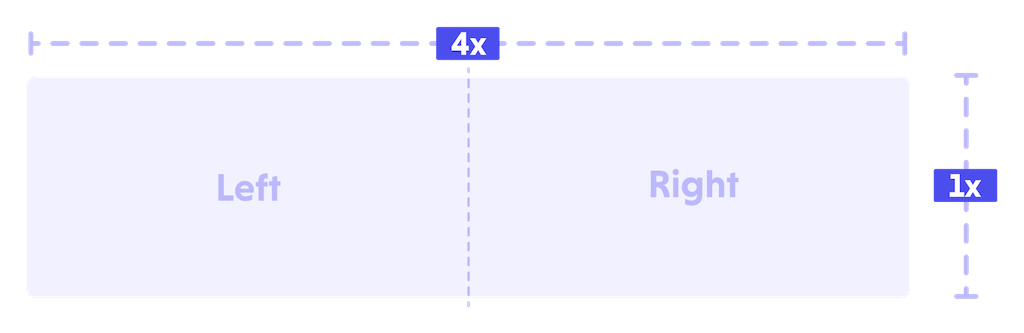
- Left eye: left half of the image.
- Right eye: right half of the image.
Common Image Problems
If an image is not accepted by the platform or has problems during viewing, check the following points:
1. The image is not in equirectangular format
The file must have a 2:1 aspect ratio.
2. The resolution is incorrect
The width must be exactly twice the height.
3. The image is just a panorama
Traditional panoramic photographs are not 360 images and cannot be used in the Tour.
4. The file was exported in the wrong format
Check that the software was configured to export a 360 panoramic image (equirectangular).
5. The image appears distorted
This is normal when the image is opened in conventional viewers. Always use a 360 viewer, such as MeuPasseioVirtual.
Following these recommendations, your images will be ready to create Virtual Tours with the best possible quality.